Physical Address
304 North Cardinal St.
Dorchester Center, MA 02124
Physical Address
304 North Cardinal St.
Dorchester Center, MA 02124
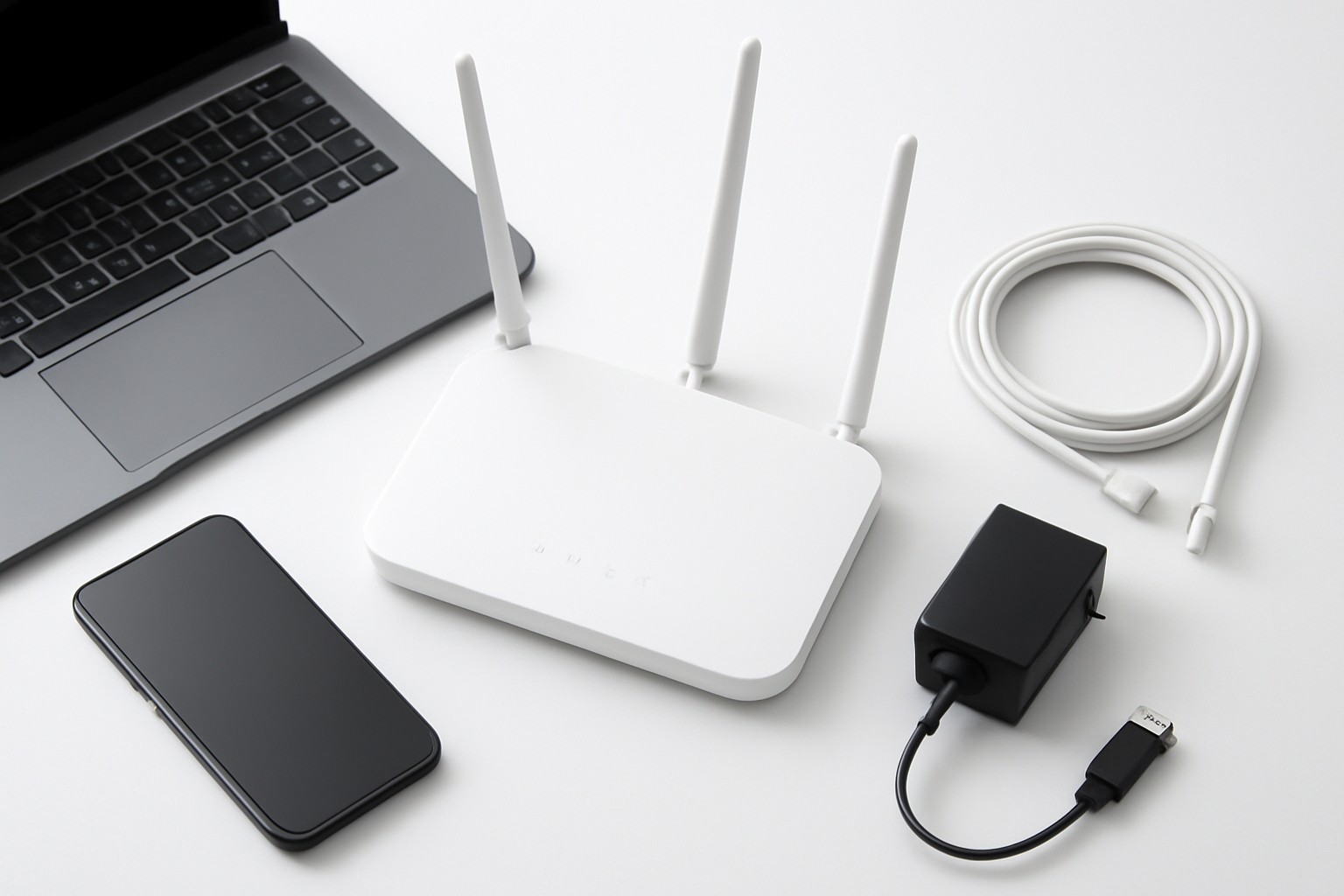
Setting up a home Wi-Fi network might seem like a daunting task, but with the right knowledge and approach, you can create a robust, secure, and high-performing wireless network that rivals professional installations. Whether you’re moving into a new home, upgrading your existing setup, or simply tired of dead zones and slow speeds, this comprehensive guide will walk you through everything you need to know to set up your home Wi-Fi network like a true professional.
Gone are the days when a simple router plugged into your modem would suffice for all your connectivity needs. Today’s homes are packed with smart devices, streaming services, remote work setups, and gaming systems that demand reliable, fast internet access throughout every corner of your living space. A properly configured home network isn’t just about convenience—it’s about maximizing your internet investment and ensuring every device gets the bandwidth it needs to perform optimally.
The good news is that modern networking equipment has become more user-friendly while simultaneously offering more advanced features than ever before. With the right planning and execution, you can create a network that not only meets your current needs but is also future-proof enough to handle whatever new devices and technologies come your way.
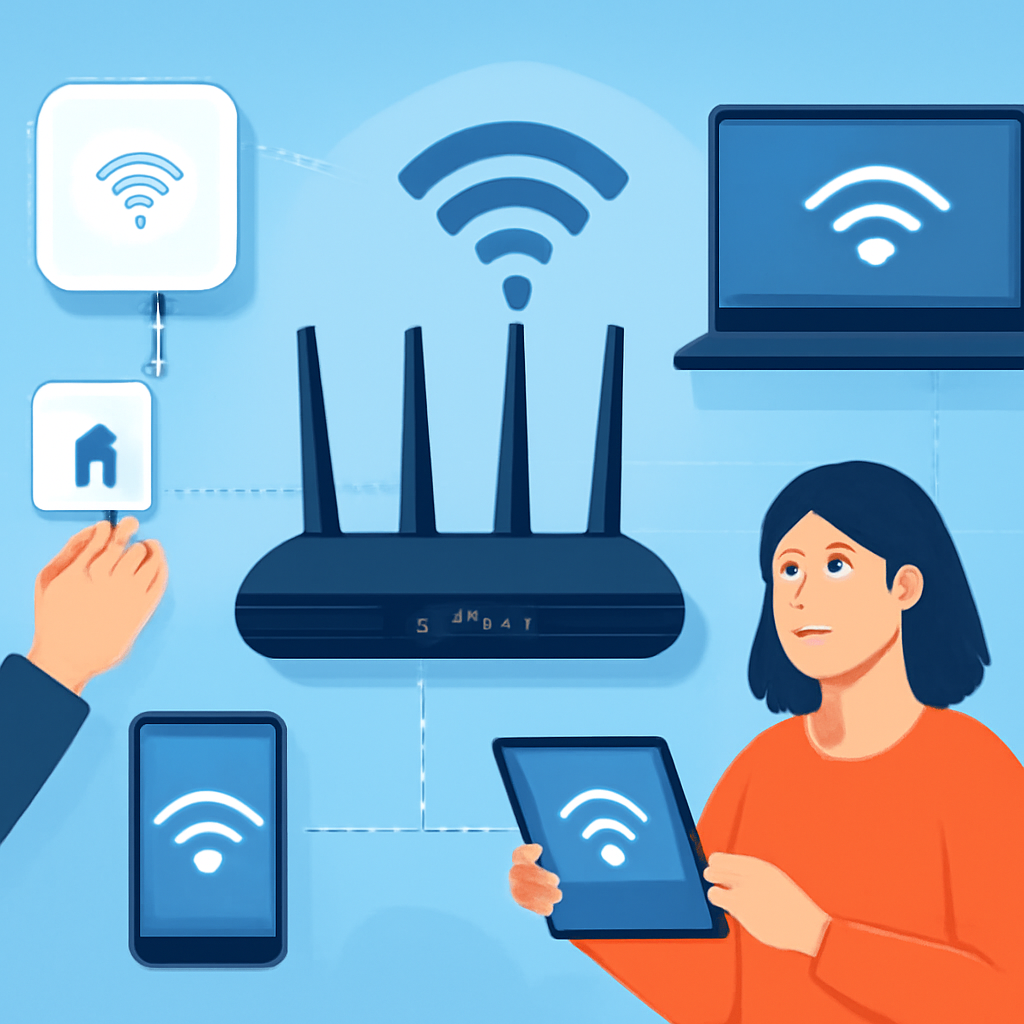
Before you purchase any equipment or start configuring settings, you need to assess your space and understand your requirements. Walk through your home and identify areas where you’ll need strong Wi-Fi coverage. Consider not just the obvious locations like living rooms and bedrooms, but also outdoor spaces, basements, and areas where you might expand your smart home ecosystem in the future.
Start by evaluating your internet usage patterns and speed requirements. Consider these factors:
Create a rough floor plan of your home and mark areas where you need reliable Wi-Fi coverage. Pay special attention to:
The foundation of any great home network starts with selecting the appropriate hardware. Your choice will depend on your home’s size, layout, and specific requirements.
Modern routers come with various Wi-Fi standards, and understanding these will help you make an informed decision:
Key features to look for in a router include:
For larger homes or those with challenging layouts, mesh networking systems offer significant advantages over traditional single-router setups. Mesh systems use multiple access points that work together to create a seamless network blanket throughout your home.
Advantages of mesh systems:
When to choose a traditional router:
Once you’ve selected your equipment, it’s time to set up your network properly. The initial configuration process is crucial for both performance and security.
Router placement significantly impacts your network’s performance. Follow these professional placement guidelines:
Most modern routers offer guided setup processes, but understanding what’s happening behind the scenes helps ensure optimal configuration:
Choose a unique network name (SSID) that doesn’t reveal your router’s make or model. Create a strong password using a mix of uppercase and lowercase letters, numbers, and special characters. Avoid common phrases or easily guessable information.
While most routers automatically select channels, understanding channel management can improve performance:
Taking your network setup to the next level involves configuring advanced features that most users overlook but can significantly impact performance and security.
QoS allows you to prioritize certain types of traffic or specific devices, ensuring critical applications get the bandwidth they need. Configure QoS to:
Setting up a separate guest network provides security benefits while maintaining convenience for visitors:
For users who need remote access to home servers, security cameras, or other networked devices, proper port forwarding configuration is essential. Combine this with Dynamic DNS services to maintain access even when your ISP changes your IP address.
A professional network setup isn’t complete without robust security measures. Implement these security practices to protect your network and connected devices:
Keep your network equipment secure by:
Even the best-planned networks may need optimization over time. Understanding how to monitor and adjust your network ensures consistent performance.
Use built-in router tools and third-party applications to monitor:
Be prepared to address typical network problems:
A professionally set up network should accommodate future needs and technology advances. Consider these forward-thinking strategies:
Setting up a home Wi-Fi network like a professional requires planning, the right equipment, and attention to detail in configuration and security. By following these guidelines, you’ll create a network that not only meets your current needs but provides a solid foundation for future technology adoption. Remember that network optimization is an ongoing process—regularly review your setup, monitor performance, and make adjustments as your needs evolve. With this comprehensive approach, you’ll enjoy reliable, fast, and secure wireless connectivity throughout your home for years to come.