Physical Address
304 North Cardinal St.
Dorchester Center, MA 02124
Physical Address
304 North Cardinal St.
Dorchester Center, MA 02124
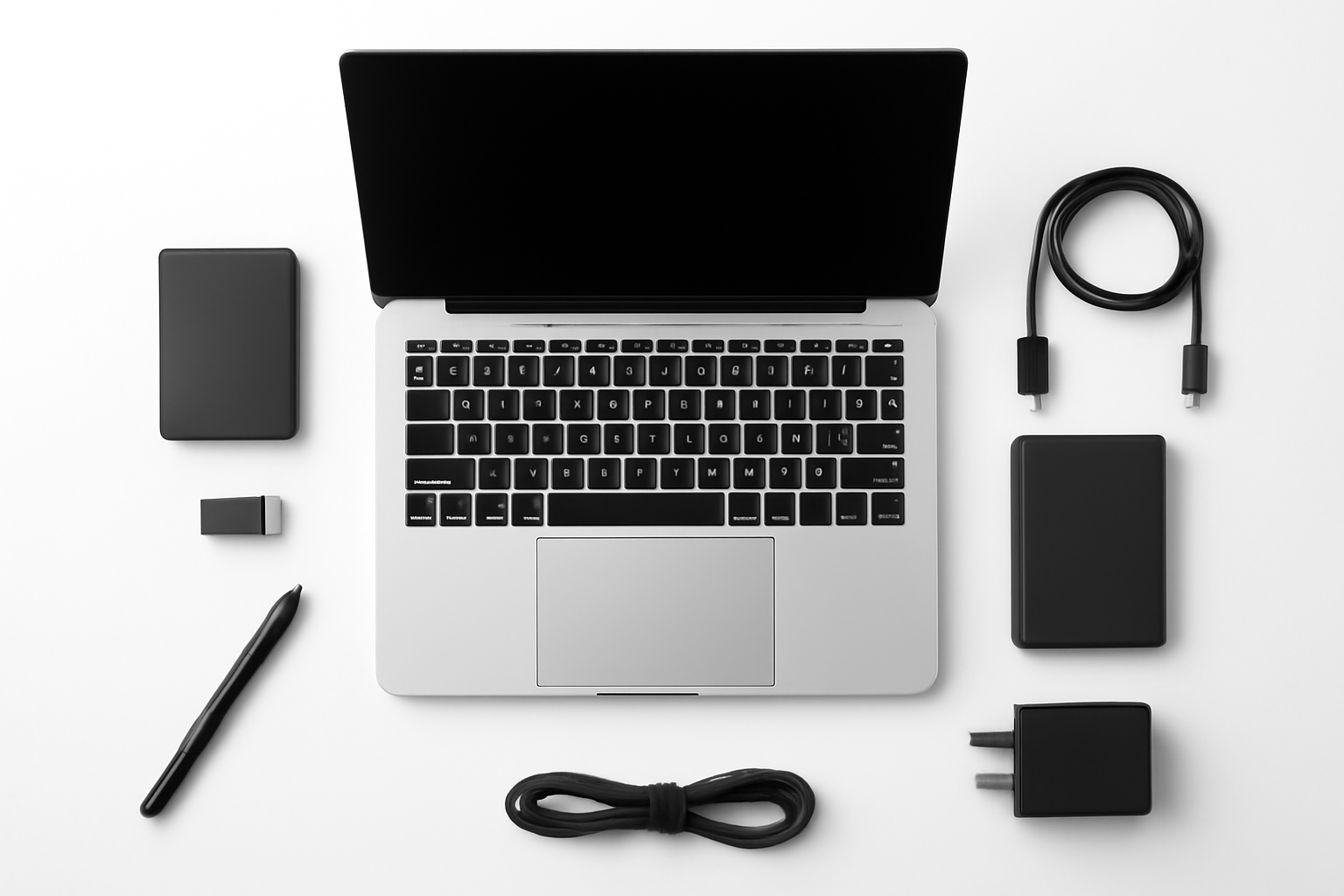
Is your once-speedy laptop now crawling at a snail’s pace? Don’t rush to replace it just yet. That aging machine gathering dust on your desk might have more life left in it than you think. With the right tweaks and optimizations, you can breathe new life into your old laptop and save yourself hundreds of dollars on a new purchase.
We’ve all been there – waiting forever for programs to load, dealing with frustrating freezes, and watching that spinning wheel of doom mock us as we try to get work done. The good news is that most performance issues plaguing older laptops aren’t hardware failures but rather software bloat, outdated drivers, and accumulated digital clutter that can be fixed with some strategic maintenance.
Whether your laptop is three years old or pushing a decade, these ten proven methods will help you squeeze every ounce of performance from your aging hardware. From simple software tweaks to minor hardware upgrades, we’ll walk you through actionable steps that can make a dramatic difference in your laptop’s speed and responsiveness.
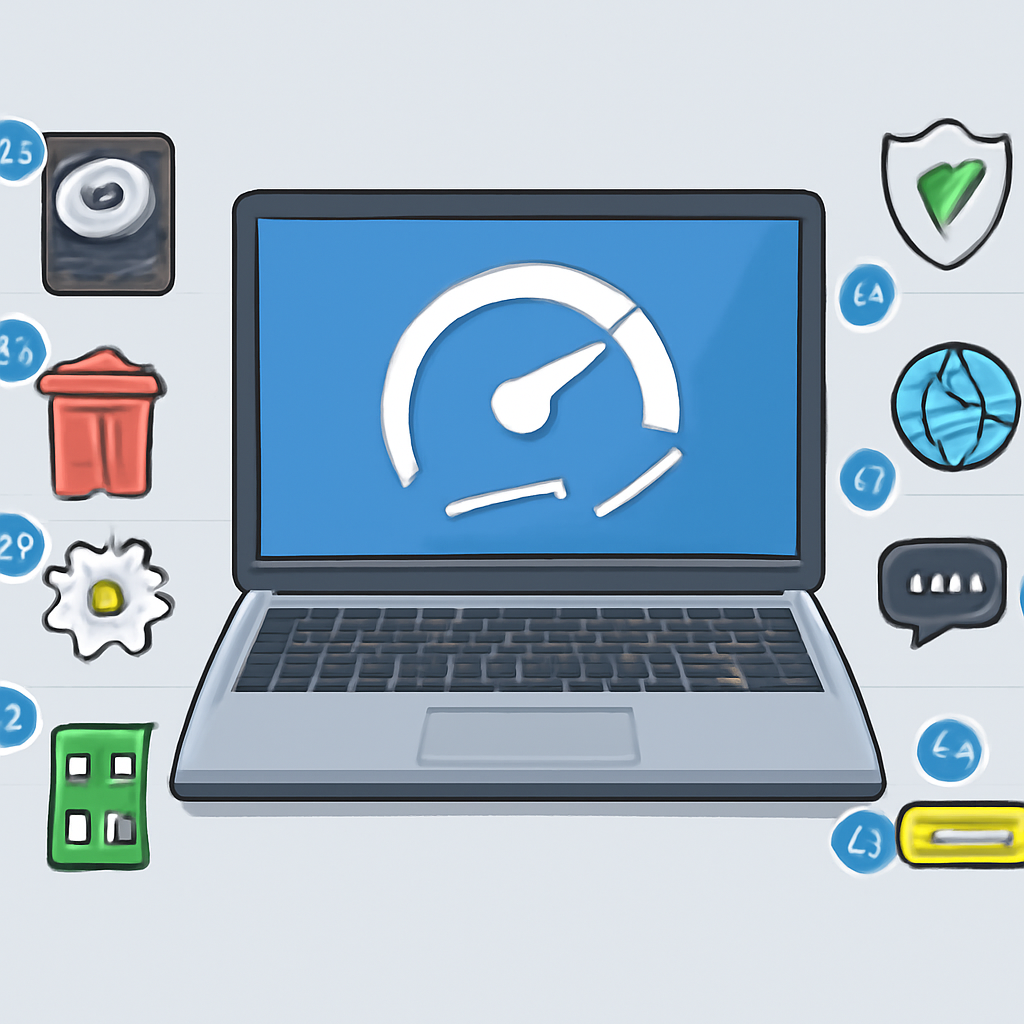
One of the quickest wins for improving laptop performance is freeing up storage space. When your hard drive is nearly full, your operating system struggles to find space for temporary files and virtual memory operations, leading to significant slowdowns.
Start by running your operating system’s built-in disk cleanup utility. On Windows, search for “Disk Cleanup” in the start menu, while Mac users can use the “About This Mac” > “Storage” > “Optimize” feature. These tools will identify temporary files, browser caches, and system files that can safely be deleted.
Aim to keep at least 15-20% of your hard drive space free for optimal performance. If you’re consistently running low on space, consider investing in an external drive or upgrading to a larger internal drive.
If your laptop still uses a traditional mechanical hard drive (HDD), upgrading to a solid-state drive (SSD) is hands down the most impactful improvement you can make. This single upgrade can make an old laptop feel like a completely new machine.
SSDs have no moving parts, which means they’re faster, more reliable, and consume less power than traditional drives. Boot times that once took several minutes can be reduced to under 30 seconds, and programs will launch almost instantly.
Before purchasing an SSD, check your laptop’s specifications to determine the correct form factor (2.5-inch SATA, M.2, etc.). Most laptops from the last decade can accommodate a standard 2.5-inch SATA SSD, which typically costs between $50-150 depending on capacity.
Insufficient RAM is often the culprit behind sluggish performance, especially when multitasking or running memory-hungry applications. If your laptop frequently uses 80% or more of its available RAM, an upgrade could provide significant performance improvements.
Modern operating systems and applications are more demanding than ever. While 4GB of RAM might have been sufficient five years ago, today’s standards typically require 8GB for smooth operation, with 16GB being ideal for power users.
Before purchasing RAM, use tools like CPU-Z (Windows) or System Information (Mac) to determine your current RAM type, speed, and available slots. Many laptops have accessible RAM slots, making this upgrade relatively straightforward for those comfortable with basic hardware installation.
Over time, numerous programs configure themselves to launch automatically when you start your laptop. While some startup programs are necessary, many are simply resource hogs that slow down your boot process and consume valuable system resources.
Both Windows and Mac provide built-in tools to manage startup programs. On Windows 10/11, open Task Manager and navigate to the “Startup” tab to see which programs are enabled to start with Windows. The “Startup impact” column helps identify the biggest culprits.
Be cautious about disabling system-critical programs, antivirus software, or hardware-specific drivers. When in doubt, research the program online before disabling it. Mac users can manage startup items through System Preferences > Users & Groups > Login Items.
Keeping your operating system and drivers up to date is crucial for optimal performance. Updates often include performance improvements, security patches, and bug fixes that can resolve issues causing slowdowns.
Enable automatic updates when possible, but also periodically check for driver updates manually. Graphics drivers, in particular, can significantly impact performance and should be updated regularly from the manufacturer’s website (NVIDIA, AMD, or Intel).
Use Device Manager on Windows or System Information on Mac to identify your hardware components, then visit the manufacturer’s website for the latest drivers. Third-party driver update tools exist, but downloading directly from manufacturers is generally safer and more reliable.
Malware, viruses, and potentially unwanted programs (PUPs) can significantly impact your laptop’s performance. These malicious programs often run in the background, consuming system resources and sometimes using your internet connection for nefarious purposes.
Run a comprehensive system scan using your installed antivirus software. If you don’t have antivirus protection, Windows Defender (built into Windows) provides solid basic protection, while Mac users can use the built-in XProtect or third-party solutions.
Prevention is key – avoid downloading software from untrusted sources, be cautious with email attachments, and keep your operating system updated with the latest security patches.
If you haven’t upgraded to an SSD yet and are still using a traditional hard drive, defragmentation can help improve performance. Over time, files become fragmented across different areas of the drive, forcing the read/write head to work harder to access data.
Important: Only defragment traditional hard drives (HDDs). Never defragment an SSD, as it provides no benefit and can actually reduce the drive’s lifespan.
Windows includes a built-in defragmentation tool accessible through “Defragment and Optimize Drives” in the start menu. Modern Windows versions automatically defragment drives on a schedule, but you can manually run the process if your drive shows high fragmentation levels.
Flashy visual effects and animations might look nice, but they consume valuable system resources that could be better used for actual productivity. Adjusting these settings can provide noticeable performance improvements, especially on older hardware.
On Windows, access Performance Options through System Properties > Advanced > Performance Settings. Select “Adjust for best performance” to disable all visual effects, or choose “Custom” to selectively disable specific effects while keeping others you prefer.
Mac users can adjust similar settings through System Preferences > Energy Saver and by reducing transparency and motion effects in Accessibility settings.
Physical cleaning might seem unrelated to performance, but dust buildup inside your laptop can cause serious slowdowns. When dust accumulates on fans and heat sinks, your laptop’s cooling system becomes less efficient, leading to thermal throttling where the processor reduces its speed to prevent overheating.
Signs your laptop needs internal cleaning include excessive fan noise, high temperatures, and sudden performance drops during intensive tasks. While deep cleaning requires some technical skill, basic maintenance can be performed by most users.
Regular cleaning every 6-12 months can prevent dust buildup and maintain optimal thermal performance. If you’re not comfortable opening your laptop, many repair shops offer cleaning services.
Sometimes, the most effective solution is starting fresh. If you’ve tried other methods without satisfactory results, a clean operating system installation can eliminate years of accumulated software conflicts, registry errors, and system bloat.
Modern operating systems offer reset options that preserve your personal files while reinstalling the OS. Windows 10/11 includes a “Reset this PC” feature, while Mac users can use “Erase and Install macOS” through Recovery Mode.
A fresh installation often provides dramatic performance improvements, with many users reporting their old laptops feel like new machines. While time-consuming, this nuclear option can add years of useful life to aging hardware.
Don’t let an aging laptop hold you back from productivity. These ten methods, when applied systematically, can transform a sluggish machine into a responsive, capable computer that serves you well for years to come. Start with the quickest wins like storage cleanup and startup program management, then consider hardware upgrades like SSD and RAM installation for maximum impact.
Remember that not every method will apply to every situation, and results may vary depending on your laptop’s age and specifications. However, even implementing a few of these optimizations should provide noticeable improvements in performance, responsiveness, and overall user experience. Your wallet – and your productivity – will thank you for giving that old laptop a second chance.